Manual Configuration To set up your 20i mailbox on an Apple iPhone or iPad, you need to: Head to the Settings icon and locate the Accounts & Passwords option.
Then select 'Add Account'. Select Other from this list.
Select Add Mail Account. Input the information requested:
Name: Anything eg Jane Smith or email address Email: jane.smith@yourdomain.com Password: Mailbox Password Description: Work, Business...etc or email address IMAP: Incoming Mail Server
Outgoing Mail Server Settings Host Name: smtp.stackmail.com Username: jane.smith@yourdomain.com Password: Mailbox Password
Outgoing Port numbers
587 with SSL OFF
OR 465 with SSL Set to ON
Norton Browser Extensions
How to Add Safe web browser extention
Step 1 Click up arrow and then yellow Norton symbol at bottom right near time
Step 2 Click Intsall on Browser Extensions
Step 3 Scroll down to Safe Web
Note I generally only install Norton Safe Web, but depending on how you want to use them you can add all the others if you want.
Note
I generally only install Norton Safe Web but you can add all or choose what you want but my preference is only Norton Safe Web, also you will need to do this for each browser if you add multiple
Microsoft Edge
Chrome
Firefox
Step 4 Click Blue Get Button
Step 6 Click Add extension
Norton Code
Copy Norton code in memory
Step 1 Click up arrow and then yellow Norton symbol at bottom right near time
Step 2 Click person top right
Step 3 Hover here until you see Enter a Key and click
Step 4 Then copy key in this location and click next
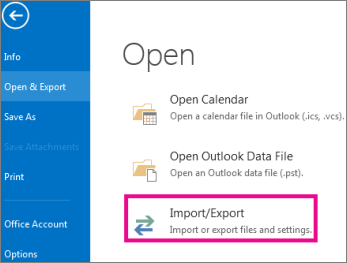
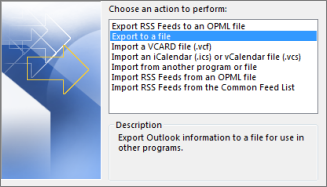
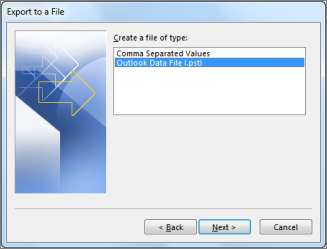
Back up your Outlook email
If you are using email for work, you are most likely using an Exchange or IMAP account. Exchange and IMAP servers automatically archive your email so that you can access it anytime or anywhere. If you have an Exchange account, check with your admin about how to access your archived email.
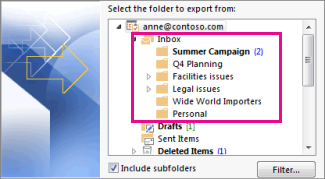
Select the mail folder you want to back up and select Next.
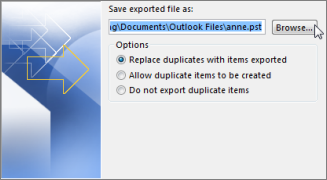
Choose a location and name for your backup file, and then select Finish.
If you want to ensure no one has access to your files, enter and confirm a password, and then select OK.
The messages that you keep in a .pst file are no different from other messages. You can forward, reply, or search through the stored messages as you do with other messages.
Snom 710 Guide
To pick up another phone ringing press *# and the extension number
Or ** extension number
So if its Karens phone * # 200 or **200 and so on for each phone etc
Outlook Imap Settings
These are Outlook Imap settings below are to help you with setting up your emails for Microsoft Outlook, Iphone or Android, these are also the settings for Mac mail and most other mail apps.
Username : this will be your full email address for example info@whnet.uk
Password is in your email we sent you
Incoming Servers/Hostname: mail.domain
Incoming Port No 143 NO SSL
Outgoing Servers/Hostname: mail.domain example mail.whnet.uk
Outgoing Port No 587 NO SSL
Outgoing Port No 993 WITH SLL ON
Outgoing Servers/Hostname: mail.domain example mail.whnet.uk
IMAP (Internet Message Access Protocol) is used to retrieve emails from a mail server. It allows users to access and manage their emails from multiple devices because it keeps the emails on the server. Here are the general IMAP settings you need for setting up email on a mail client (e.g., Outlook, Gmail, Thunderbird).
General IMAP Settings
IMAP Server: The server address that allows incoming mail access.
IMAP Port: 993 (usually for SSL/TLS), 143 (without SSL/TLS).
Encryption: SSL/TLS for secure connections.
Username: Your full email address.
Password: The password for your email account.
Common IMAP Settings for Popular Email Providers:
1. Gmail
IMAP Server: imap.gmail.com
Port: 993
Encryption: SSL/TLS
Username: Your full Gmail address (e.g., user@gmail.com)
Password: Your Gmail password (or app password if 2-step verification is enabled)
2. Yahoo Mail
IMAP Server: imap.mail.yahoo.com
Port: 993
Encryption: SSL/TLS
Username: Your full Yahoo email address
Password: Your Yahoo password
3. Outlook.com (Microsoft 365, Hotmail, Live)
IMAP Server: imap-mail.outlook.com
Port: 993
Encryption: SSL/TLS
Username: Your full Outlook email address
Password: Your Outlook password
4. iCloud Mail
IMAP Server: imap.mail.me.com
Port: 993
Encryption: SSL/TLS
Username: Your full iCloud email address
Password: Your Apple ID password
5. Zoho Mail
IMAP Server: imap.zoho.com
Port: 993
Encryption: SSL/TLS
Username: Your full Zoho email address
Password: Your Zoho password
6. ProtonMail (via ProtonMail Bridge)
IMAP Server: Managed through ProtonMail Bridge
Port: Configured by Bridge app
Encryption: Handled via ProtonMail Bridge
Username & Password: Generated through the Bridge app
IMAP vs. POP3
IMAP (synchronizes mail across devices): Best for accessing emails from multiple devices (phone, laptop, etc.).
POP3 (downloads mail): Best for accessing emails on a single device as it downloads and removes mail from the server.